
Replace Helm Charts and Terraform with Aspire
Tired of wrestling with YAML files and complex IaC configurations? Discover how Aspire lets you deploy FeatBit Feature Flags to Azure using the programming language you already know—no Helm Charts or Terraform required.
TL;DR
This guide shows you how to deploy FeatBit to Azure Container Apps using Aspire. You'll define your infrastructure in C#, run everything locally for testing, then deploy to Azure with a single azd up command. Perfect for teams already working in the Microsoft ecosystem who want a more developer-friendly alternative to traditional IaC tools.
📦 Key Approach: This case study demonstrates how to use Aspire to orchestrate and deploy existing Docker Hub images to Azure—no need to build from source. Simply reference official container images and let Aspire handle the deployment.
Why Consider Aspire?
If you're deploying microservices to Azure, you've likely encountered the complexity of Helm Charts and Terraform. While these tools are powerful, they come with a steep learning curve and require context-switching between your application code and infrastructure configuration.
Aspire offers a different approach: define your infrastructure using the same programming language as your application. This means you can leverage familiar concepts like dependency injection, configuration management, and debugging tools while setting up your cloud resources.
We've created the first version of FeatBit's Aspire deployment to help teams in the Microsoft technology ecosystem get started quickly. Here's what you need to know.
What to Expect
Advantages
- •Seamless local development experience - test your entire stack before deploying
- •Developer-friendly deployment with just a few lines of .NET or Python code
- •Familiar programming paradigm instead of YAML configuration files
- •Built-in observability with Application Insights integration
Current Limitations
- •Currently limited to Azure Container Apps as the deployment target
- •Some Azure components (Application Gateway, Front Door, Key Vault) not yet available in Aspire
💡 All source code and detailed instructions are available in the FeatBit Aspire GitHub Repository
Architecture Overview
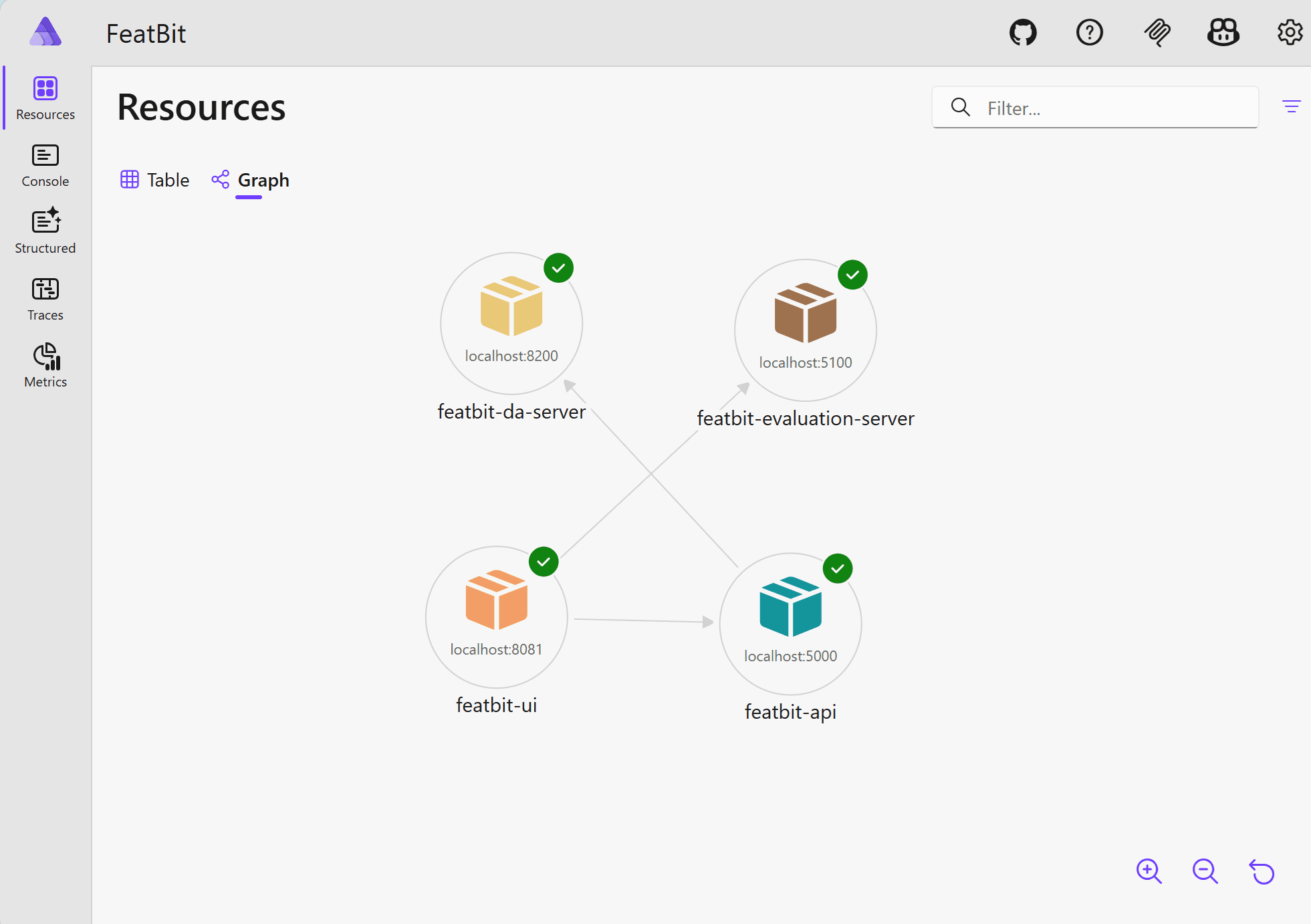
Before diving into the implementation, let's understand what we're deploying. FeatBit consists of multiple services, and rather than building from source, our Aspire solution orchestrates the official Docker images from Docker Hub.
Docker Hub Images Approach
This deployment uses pre-built container images from Docker Hub (e.g.,featbit/featbit-api-server:latest). Aspire acts as an orchestrator—defining how these containers connect, scale, and deploy to Azure Container Apps. This pattern is ideal when you want to deploy third-party or official images without modifying the source code.
Services Included
Web API
RESTful API for feature flag management
Evaluation Server
Real-time flag evaluation with WebSocket support
UI Dashboard
Angular-based management interface
Data Analytics
Usage tracking and reporting
External Dependencies (You Provide)
To keep this first version simple and aligned with real customer scenarios, the following services are not provisioned by Aspire. You'll need to provide your own instances:
- ▸PostgreSQL or MongoDB - Your choice of database backend
- ▸Redis - For caching and message queuing
Architecture visualized in Aspire's Graph View:
Understanding the Implementation
Let's walk through the code that makes this work. The beauty of Aspire is that everything is defined in C#, making it easy to understand and modify.
The Entry Point
The Program.cs file serves as the orchestrator, defining all services and their dependencies:
using FeatBit.AppHost;

var builder = DistributedApplication.CreateBuilder(args);

if (builder.ExecutionContext.IsPublishMode)
{
    // Add Azure Container Apps environment when publishing to Azure
    builder.AddAzureContainerAppEnvironment("featbit-aspire");
}

// Database Provider Configuration - choose between "Postgres" and "MongoDb"
var dbProvider = builder.Configuration["DbProvider"] ?? "Postgres";
var databaseConnectionString = builder.Configuration[$"ConnectionStrings:{dbProvider}"]
    ?? throw new InvalidOperationException($"{dbProvider} connection string is required");

// Redis Resource - use existing connection string
var redisConnectionString = builder.Configuration["ConnectionStrings:Redis"]
    ?? throw new InvalidOperationException("Redis connection string is required");

// Application Insights Resource - only use in publish mode (when deploying to Azure)
IResourceBuilder<IResourceWithConnectionString>? applicationInsights = null;
if (builder.ExecutionContext.IsPublishMode)
{
    applicationInsights = builder.AddAzureApplicationInsights("applicationinsights");
}

// Add all services using extension methods from separate files
var dataAnalytics = builder.AddDataAnalyticsService(dbProvider, databaseConnectionString, applicationInsights);
var webApi = builder.AddWebApiService(dbProvider, databaseConnectionString, redisConnectionString, dataAnalytics, applicationInsights);
var evaluationServer = builder.AddEvaluationServerService(dbProvider, databaseConnectionString, redisConnectionString, applicationInsights);
var angularUI = builder.AddUIService(webApi, evaluationServer);

builder.Build().Run();
Here's what each section does:
- Environment Detection: In publish mode (deploying to Azure), we configure the Azure Container Apps environment and enable Application Insights monitoring
- Configuration Loading: Database and Redis connection strings are retrieved from
appsettings.json - Service Registration: Each FeatBit service is added using extension methods, with proper dependency ordering (Data Analytics first, as Web API depends on it)
Defining a Service
Each service is configured through an extension method. Here's how the Web API service is defined:
public static IResourceBuilder<ContainerResource> AddWebApiService(
    this IDistributedApplicationBuilder builder,
    string dbProvider,
    string databaseConnectionString,
    string redisConnectionString,
    IResourceBuilder<ContainerResource> dataAnalytics,
    IResourceBuilder<IResourceWithConnectionString>? applicationInsights = null)
{
    var isPublishMode = builder.ExecutionContext.IsPublishMode;
    var isMongoDb = dbProvider.Equals("MongoDb", StringComparison.OrdinalIgnoreCase);
    var dbEnvKey = isMongoDb ? "MongoDb__ConnectionString" : "Postgres__ConnectionString";

    var container = builder
        .AddContainer("featbit-api", "featbit/featbit-api-server", "latest")
        .WithEnvironment("DbProvider", dbProvider)
        .WithEnvironment(dbEnvKey, databaseConnectionString)
        .WithEnvironment("Redis__ConnectionString", redisConnectionString)
        .WithEnvironment("SSOEnabled", "true")
        .WithEnvironment("MqProvider", "Redis")
        .WithEnvironment("CacheProvider", "Redis")
        .WithEnvironment("OLAP__ServiceHost", isPublishMode
            ? dataAnalytics.GetEndpoint("https")
            : dataAnalytics.GetEndpoint("http"))
        .WithEnvironment("ASPNETCORE_URLS", $"http://+:{Port.ToString()}")
        .WithEnvironment("AllowedHosts", "*");

    container = isPublishMode
        ? container.WithHttpEndpoint(targetPort: Port, name: "http")
                   .WithHttpsEndpoint(targetPort: Port, name: "https")
        : container.WithHttpEndpoint(port: Port, targetPort: Port, name: "http");

    // Mark endpoints as external BEFORE PublishAsAzureContainerApp
    container = container.WithExternalHttpEndpoints();

    container = container
        .WithHttpHealthCheck("/health/liveness")
        .PublishAsAzureContainerApp((_, app) =>
        {
            app.Template.Scale.MinReplicas = 3;
            app.Template.Scale.MaxReplicas = 10;
            app.Configuration.Ingress.External = true;

            var containerResource = app.Template.Containers[0].Value!;
            containerResource.Resources = new()
            {
                Cpu = 0.75,
                Memory = "1.5Gi"
            };
        });

    if (applicationInsights is not null)
    {
        container = container.WithEnvironment(
            "APPLICATIONINSIGHTS_CONNECTION_STRING",
            applicationInsights);
    }

    return container;
}
Key configuration points:
- Container Definition: We reference the official FeatBit Docker image from Docker Hub
- Environment Variables: All required configuration is passed via environment variables, including database connections and service endpointsNote: Internal service communication uses HTTPS in publish mode and HTTP locally
- Endpoint Configuration: Different endpoints for local development vs. Azure deployment
- Critical Ordering: Call
WithExternalHttpEndpoints()beforePublishAsAzureContainerApp() - Health Checks: Configured via
WithHttpHealthCheck("/health/liveness") - Azure Deployment Settings:
- Auto-scaling: 3–10 replicas based on demand
- External ingress enabled for public access
- Resource allocation: 0.75 CPU, 1.5Gi memory per container
- Observability: Application Insights connection string is injected when deploying to Azure
Running Locally
One of Aspire's biggest advantages is the seamless local development experience. Run the project just like any other .NET application, and Aspire will orchestrate all your containers automatically.
Pro tip: Use the Aspire MCP Server for enhanced debugging and real-time insights during local development.
Deploying to Azure
When you're ready to deploy, Azure Developer CLI (azd) makes the process straightforward. Here's everything you need to know.
Important: This version requires you to provide your own PostgreSQL/MongoDB database and Redis instance.
Prerequisites
- ✓Active Azure subscription
- ✓Azure Developer CLI (azd) installed
- ✓PostgreSQL or MongoDB database with FeatBit schema initialized
- ✓Redis instance (Azure Cache for Redis or self-hosted)
Step-by-Step Deployment
Configure Connection Strings
Edit FeatBit.AppHost/appsettings.json with your database and Redis connection strings.
Authenticate with Azure
azd auth loginDeploy to Azure
azd upYou'll be prompted for environment name, Azure subscription, and target region.
What Gets Deployed
The azd up command provisions and deploys everything in a single step:
- ▸Azure Container Apps Environment with managed networking
- ▸4 Container Apps with auto-scaling (3–10 replicas each)
- ▸Application Insights for monitoring and diagnostics
- ▸Log Analytics workspace for centralized logging
Deployment time: Approximately 10–15 minutes
Post-Deployment Access
After deployment completes, you'll receive HTTPS endpoints for all services. Access the FeatBit dashboard at your assigned URL.
Default credentials: test@featbit.com / 123456
Required Post-Deployment Step: Enable WebSocket support for the Evaluation Server to ensure real-time flag updates work correctly:
az containerapp ingress sticky-sessions set \
  --name featbit-evaluation-server \
  --resource-group rg-<your-env-name> \
  --affinity sticky
For complete deployment instructions, visit the FeatBit Aspire repository.
Tips for Success
Leverage the MicrosoftDocs MCP Server
The MicrosoftDocs MCP Server significantly enhanced our development process and can help you too.
- •Up-to-date guidance: Access the latest Azure documentation as you code
- •Deployment assistance: Get help with Azure Container Apps configuration
- •Troubleshooting support: Quickly find answers to common issues
Current Limitations & Roadmap
While Aspire provides an excellent developer experience, some Azure components aren't yet available:
- •Application Gateway
- •Azure Front Door
- •Azure CDN
- •Azure Key Vault integration
Most enterprise customers already have their own infrastructure for these components to meet security and compliance requirements.
What's Next
This first version prioritizes simplicity and ease of adoption. Future versions will include:
- →Managed identity support for database and Redis connections
- →Azure Key Vault integration for secrets management
- →Automatic provisioning of Azure Database for PostgreSQL and Azure Cache for Redis
- →Enhanced security configurations based on customer feedback
We're actively developing based on customer feedback and real-world use cases. Have suggestions or want to contribute?
Contribute on GitHub