
How to use Feature Flag MCP server in Asp.Net Core Project
A comprehensive guide to implementing feature flags in ASP.NET Core using FeatBit SDK with MCP server integration
Feature flags are a powerful technique that allows you to toggle features on and off without deploying new code. This guide will walk you through setting up feature flags in your .NET project using FeatBit SDK, integrated with MCP (Model Context Protocol) server for enhanced development experience.
1Configure MCP Server
The MCP server acts as a bridge between your development environment and external services, enabling seamless integration with feature flag management systems like FeatBit.
1Find FeatBit .NET SDK MCP Server on Context7
Navigate to Context7 and locate the FeatBit Server-Side SDK for .NET documentation. Context7 provides access to comprehensive SDK documentation and implementation guides.
Context7 Dashboard with FeatBit SDK
Screenshot showing Context7 interface loaded with FeatBit Server-Side SDK for .NET documentation
2Configure VS Code mcp.json file, add Context7 as MCP Server Provider
Add Context7 as a MCP server provider in your VS Code configuration to enable seamless integration with FeatBit .NET SDK documentation and tooling.
{
  "servers": {
    "github-mcp": {
      "type": "http",
      "url": "https://api.githubcopilot.com/mcp"
    },
    "context7": {
      "type": "http",
      "url": "https://mcp.context7.com/mcp",
      "headers": {
        "CONTEXT7_API_KEY": "{{YOUR_API_KEY}}"
      }
    }
  }
}
✅ Once configured, Context7 will provide real-time access to FeatBit SDK documentation, code completion support, and implementation guidance directly in your VS Code environment.
2Use VS Code to Initialize FeatBit SDK in ASP.NET Core
1Chat with VS Code Agent
Start by opening VS Code chat and providing a prompt that mentions Context7 to integrate FeatBit dotnet SDK into your ASP.NET Core project.
VS Code Chat Interface
Screenshot showing how to interact with VS Code agent using Context7

💬 "I need you to integrate FeatBit dotnet SDK into this asp.net core project. Please use context7's featbit/featbit-dotnet-sdk for reference."
2Wait for Agent to Run Automatically
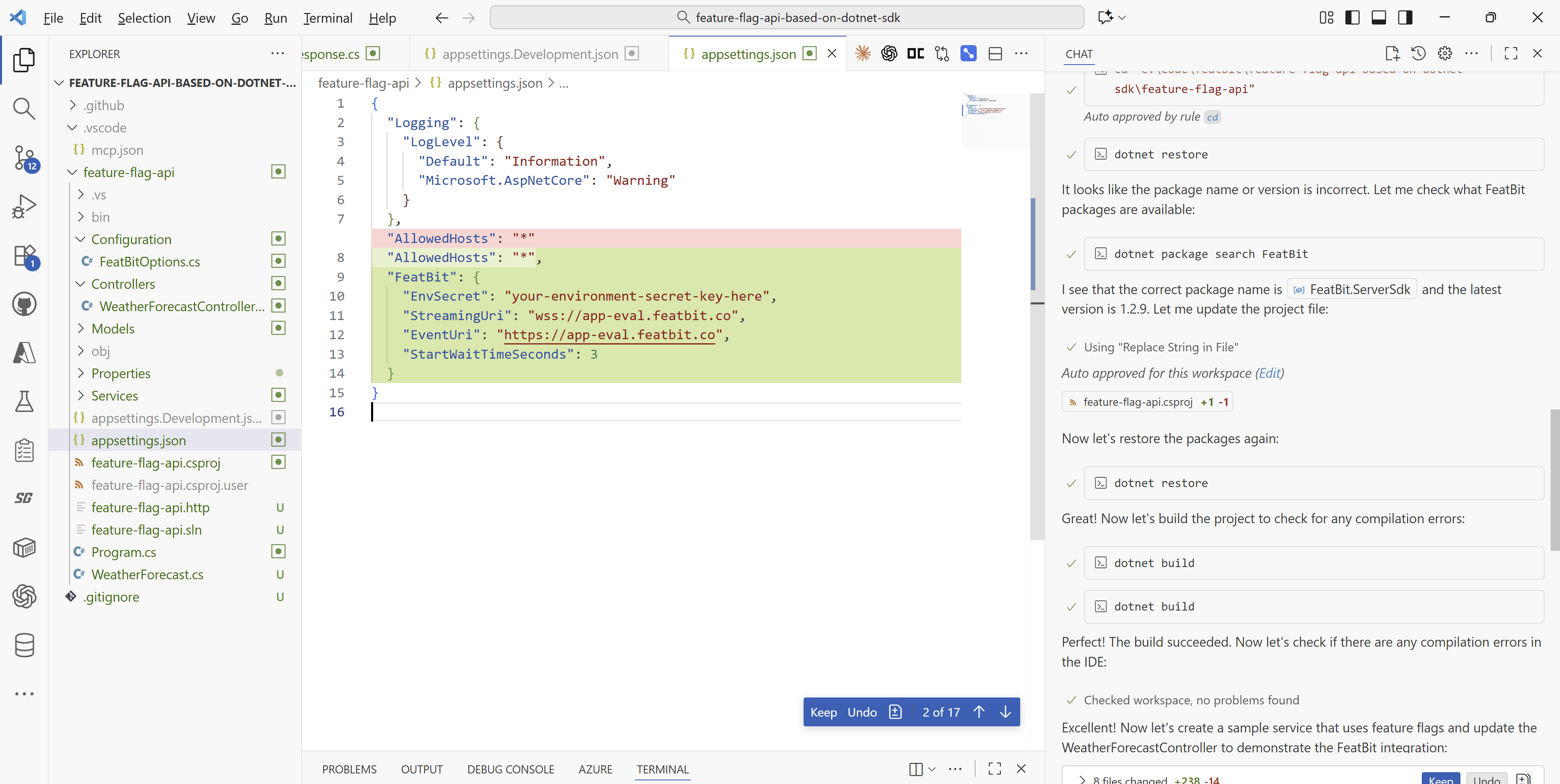
The VS Code agent will communicate with the MCP server and perform the following automated steps:
Initialize Code
The agent will analyze your project structure and initialize the necessary FeatBit SDK integration code in your Program.cs file.

Add Configurations
Configuration files (appsettings.json, appsettings.Development.json) will be updated with FeatBit settings including EnvSecret, StreamingUri, and EventUrl.
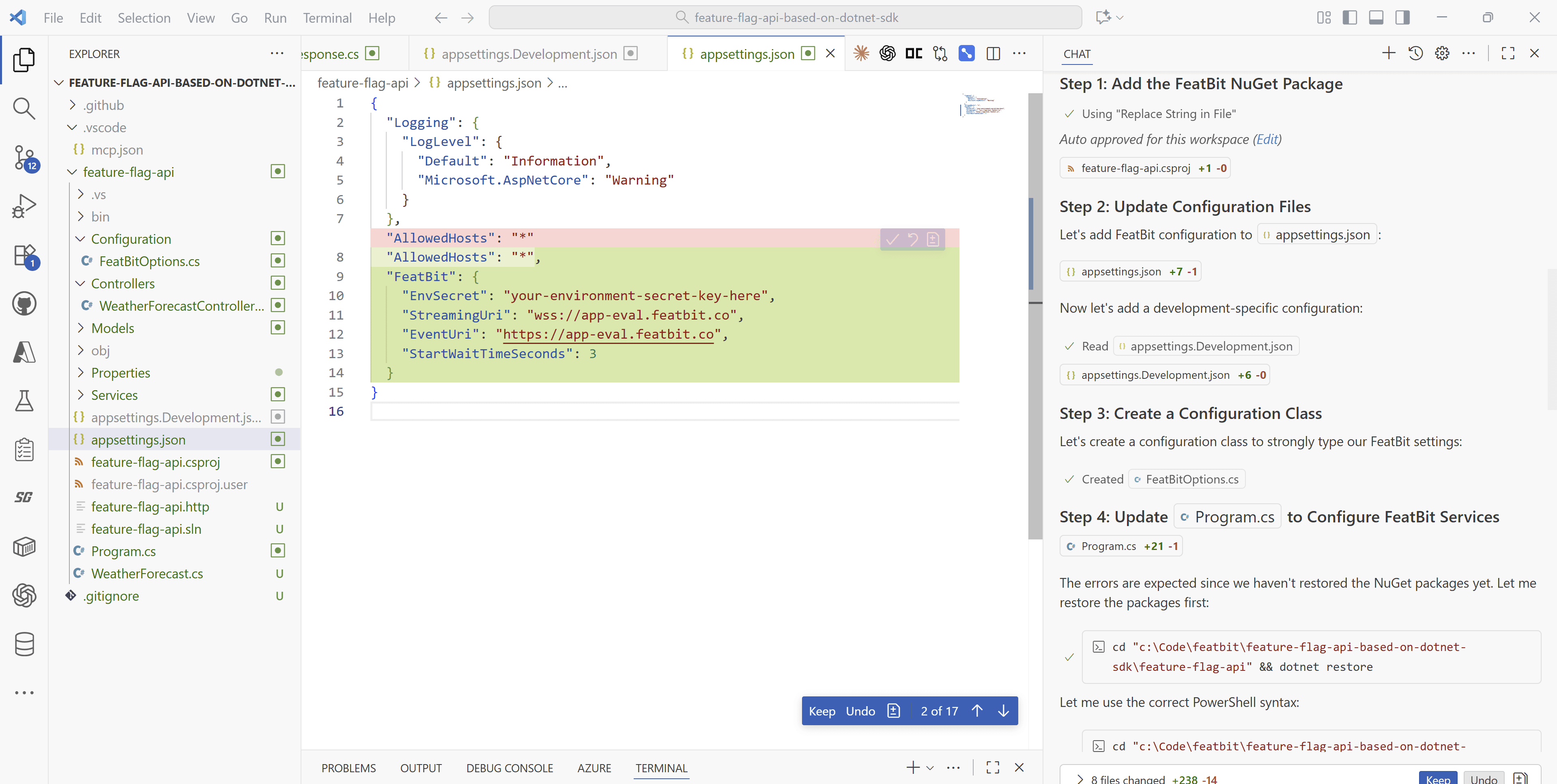
Install Missing Packages
The agent will automatically run dotnet restore to install the FeatBit.ServerSdk package and any dependencies.
Build and Debug
Finally, the agent will run dotnet build to ensure there are no compilation errors and verify the integration is complete.
Once the agent finishes, your ASP.NET Core project will be fully configured with FeatBit SDK and ready to use feature flags.
3Create API to Implement Feature Flags
We'll create a new API to let external services retrieve a single feature flag value by providing user information (key, name, and custom properties). This API will expose different feature flag type endpoints such as boolean, string, number, and JSON string.
1Define the Prompt for VS Code Agent
The prompt is very simple. We ask the VS Code agent to help us create the feature flag API:
I need you to remove WeatherForecast api,

and create a new api, the main objective is to receive user key, name and customized properties, then call featbit sdk to get the evaluated feature flag value for the given user information.

i need you expose different feature flag type apis, such as boolean, string, number, json string.

note:
- use featbit feature flag
- use context7 as mcp server
2AI Learning from Context7 MCP Server
The VS Code agent learns from Context7 MCP server to implement the correct feature flag code and construct the API. Context7 provides the necessary documentation and examples for FeatBit .NET SDK, enabling the AI to generate accurate implementation.
💡 How it works: The AI agent uses the Context7 MCP server to access FeatBit SDK documentation, understanding the proper usage patterns and generating appropriate API code based on the requirements.
3Generated API Implementation Example
As a real code example, the AI helps us create an API "/api/featureflag/boolean" with the `EvaluateBooleanFlag` method. This method takes user information in the request body, then calls the `BoolVariation` function provided by the FeatBit .NET server SDK, and returns the feature flag evaluation details for the given user.
AI-Generated Feature Flag API Implementation
Screenshot showing the AI agent implementing feature flag API methods using FeatBit SDK

💻Complete Implementation Code
For the complete FeatureFlagController.cs implementation and all related code examples, visit our comprehensive GitHub repository. All code in this repository has been generated by VS Code Agent to ensure best practices and optimal implementation.
View Complete Code Repository⚡ Generated by VS Code Agent | 🔧 Production Ready | 📚 Comprehensive Documentation
4Testing Your Feature Flag API
Test Boolean Flag Endpoint
# Test boolean feature flag
curl --location 'https://featgen-customer-ff-api-ecbdbgh9fzazaeep.westus-01.azurewebsites.net/api/FeatureFlag/boolean' \
--header 'Content-Type: application/json' \
--header 'Cookie: ARRAffinity=d242e3a14517086d5f3ad5ccb7ecac798999635e8e3f838b583f16ee6eb2d72b; ARRAffinitySameSite=d242e3a14517086d5f3ad5ccb7ecac798999635e8e3f838b583f16ee6eb2d72b' \
--data '{
    "UserKey": "project_1164",
    "Name": "project_1164",
    "FlagKey": "enable-agent-v2"
}'
Example Response
{
    "flagKey": "enable-agent-v2",
    "value": true,
    "userId": "project_1164",
    "evaluatedAt": "2025-10-14T07:55:19.0427215Z"
}
✅ Success Indicators
- API returns feature flag values based on user context
- Different flag types (boolean, string, number, JSON) work correctly
- Custom properties are properly passed to FeatBit SDK
- Evaluation reasons are returned for debugging
- No errors in application logs
You've successfully implemented feature flags in your .NET project using FeatBit SDK with MCP server integration. This setup provides you with powerful capabilities to control feature rollouts, conduct A/B tests, and manage application behavior without deploying new code.